MacBook won't charge: 6 solutions for charging problems
It's frustrating when your MacBook suddenly stops charging even though it's plugged in. You usually only notice when the battery is empty and you find yourself without power.
In this guide we show you 6 effective solutions that will let you fix, or at least isolate, the charging problem on your MacBook in most cases. To each case we add what was usually defective in the workshop in the end. This applies to the MacBook Air and MacBook Pro from the Intel model to the M5 chip, with a MagSafe connector as well as with USB-C.
Quick overview: the 6 solutions
If your MacBook won't charge even though it's plugged in, there's a systematic way to track down the cause:
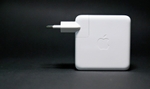
- Check power adapter and cable – verify compatibility and condition
- Disable optimized charging – lift the temporary block
- System restart – resolve software conflicts
- Reset power management – SMC reset or Apple Silicon procedure
- Check battery apps – disable third-party charging tools
- Hardware diagnosis – rule out a logic board defect
If these steps don't solve it, it is usually a hardware fault. The diagnosis is free – in Hamburg-Altona or by mail-in from anywhere in Germany via emonis.com, with free DHL shipping both ways.
Drawing the line: If the MacBook stays completely dead – no picture, no sound, no reaction, even after a night on the charger – that's not a charging problem but a startup problem. There's a dedicated guide for that: MacBook won't start or won't turn on.
Liquid involved? Then please do not charge.
Did coffee, tea or water get into the machine? Then do not plug it into the adapter and do not try to start it: switch the machine off (hold the power button for ten seconds), dry the outside and bring it in or send it in for professional cleaning as quickly as possible. Every charging attempt drives current through wet contacts and turns a small fault into a large one. The sooner the machine is with us, the more likely it stays at a cleaning – instead of a repair of the board. More on water damage →
Which case is yours?
This is how customers describe the problem at intake – find the case that matches your machine. If the connector sits loose, if the machine charges only on one port or only with the cable in a certain position, the port itself is the topic – there is a separate post for that: MacBook USB-C port or charging port defective.
MacBook won't charge any more – the LED stays dark
"Won't charge any more" – by far the most common description, often with the note that the LED on the connector stays dark or no lightning bolt appears in the battery icon. First go through reason 1 and the charging status: another outlet, another cable, with USB-C another port. If the LED stays dark although the adapter works on another device, the power does not reach the board. In the workshop it was then a good half of the time the charging electronics on the logic board, then the battery, more rarely the charging port or the adapter. If you have already bought a new adapter and it still does not charge, you can save yourself the next purchase: on these machines the fault most often sat on the board. If the machine does not turn on at all any more, let it charge for about 20 minutes with the original adapter and then hold the power button for ten seconds – everything else, from key combinations to the workshop findings, is in the guide MacBook won't start or won't turn on.
Power source: power adapter – battery is not charging
"Not charging": according to the battery menu the Mac is on the adapter, but the percentage does not rise – Apple calls this status "Not Charging". That is not always a defect. Battery health management pauses charging to protect the battery and lets it drop to 93% or less before it charges again. An adapter that is too weak is often enough to run the Mac but not to charge it, and under heavy load the Mac uses more than the adapter delivers. So check wattage and cable (reason 1) and the charging settings (reason 2). If the message stays even with the original adapter and after a restart, it is a hardware case – in the workshop then usually the logic board, more rarely the battery.
MacBook won't charge after liquid damage
"Since liquid got on it, it won't charge": then the red box above applies – no more charging, no start attempts, quickly to cleaning. As long as there is voltage on the board, wet contacts on the port and the board keep corroding. In the workshop about three out of four of these machines needed a repair of the logic board, and quite often the keyboard came on top. The sooner the machine is with us, the more likely it stays at a cleaning – that costs from 140 €, often under 200 € (incl. VAT). What to do in the first hours: MacBook water damage – what to do?
MacBook won't charge fully – stops at 80% or hangs at 1%
"Won't charge fully" or "stays at 80 percent": that is often intentional. Optimized Battery Charging holds the battery at 80% in certain situations, for example when the Mac is expected to stay on power for a long time – the battery menu then says "Charging on Hold", with a set charge limit "Charged to limit of … %". If charging also stops at 80% with the feature switched off, the battery may be too warm (reason 2). If the display hangs at a few percent and does not move overnight either, that is a hardware case – in the workshop it was usually the logic board here.
MacBook runs only on the adapter and turns off without the cable
"Works only on the adapter" – as soon as the connector is out, the MacBook is off, often even with remaining charge displayed. Look at battery health and charge cycles: "Service Recommended" or a very high cycle count point to the battery. If the case bulges or the trackpad is hard to press, the battery is swollen – then stop charging, switch the machine off and have it replaced soon. In the workshop it was usually the battery in this case – fixed price 180 € for the MacBook Air, 220 € for the MacBook Pro, incl. VAT –, more rarely the logic board. Whether it really is the battery and how the swap works: MacBook battery replacement.
How do I know if my MacBook is actually charging?
When your MacBook is running, the battery icon in the menu bar (top right) shows a lightning bolt while it's charging. If the battery icon only shows a plug, that means the MacBook is connected to a power adapter but not charging.
Click the battery icon to see more details, such as which power source is currently being used (battery or adapter) and the status – for example "Not Charging", "Charging on Hold" or "Charged to limit of … %".

The top 6 reasons your MacBook isn't charging
Reason 1: Power adapter or cable incompatible or defective
Make sure the adapter supports USB-C Power Delivery and delivers at least as many watts as the adapter that came with your MacBook – that is Apple's rule of thumb. A weaker adapter may run the Mac but not charge it, especially under load, and some USB-C cables carry data only and don't charge at all. Cheap, uncertified knock-off adapters often deliver unstable voltages and can damage the charging electronics. With USB-C every port can charge – try them all, and test with the adapter alone rather than through a hub or monitor.
Also check whether the connectors on the adapter and cable are clean and look for any damage or breaks. Always unplug the adapter from the wall before visually inspecting it, to avoid shocks. If the original cable or adapter is damaged, replace it with a new genuine Apple part.
Reason 2: Optimized Battery Charging is active
Since macOS Big Sur 11.0 there's a feature called "Optimized Battery Charging". It's designed to extend battery lifespan by intelligently managing the charging cycle and slowing the chemical aging of the battery.
The side effect: your MacBook may stop charging at around 80% and only top up to 100% later, when macOS predicts you'll need it. So it can look like your MacBook has stopped charging for no reason.
How to temporarily disable optimized charging:
Open the Apple menu → System Settings → Battery, click the info button (ⓘ) next to "Charging" – in older macOS versions next to "Battery Health" – and turn off "Optimized Battery Charging". Macs with Apple Silicon on macOS Tahoe 26.4 or later also offer a charge limit between 80 and 100% in the same place. And heat slows charging down: according to Apple, Mac laptops work best at 10 to 35 °C room temperature; if charging stops at 80% even with Optimized Battery Charging switched off, the battery may be too warm.
Your MacBook now charges normally whenever it's plugged in. Don't leave this feature off permanently, though: in the long term it genuinely helps extend the life of your MacBook battery.
Reason 3: Something has gotten stuck
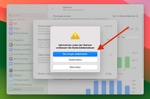
If your MacBook Pro or Air says it's plugged in but not charging, a simple restart often fixes it. Many software-side issues around the charging process can be resolved this way. Sometimes a process related to charging freezes and stops the charging procedure; these are temporary problems a restart clears up.
Follow these steps:
- Click the Apple menu → Restart.
- Wait for the Mac to boot back up.
- Check whether charging works now.
Reason 4: Reset the power management
If the problem persists after a restart, the power management itself may be the issue. The exact procedure depends on your MacBook generation.
MacBooks with Apple Silicon (M1, M2, M3, M4, M5):
On these models a restart replaces the SMC reset: according to Apple, the SMC – which controls the power management – resets automatically when the Mac restarts or is shut down and turned back on, and there is no key combination for it. If the Mac is frozen, force the restart:
- Hold the power button (or Touch ID) for 10 seconds until the MacBook switches off.
- Wait a few seconds.
- Turn the MacBook back on by pressing the power button.
Intel MacBooks with the T2 security chip (most models from 2018 onwards):
Apple's first step: shut down, hold the power button for 10 seconds, release it, wait a few seconds and turn the Mac on. If that doesn't help:
- Fully shut down the MacBook.
- Hold Control (left) + Option (left) + Shift (right) for 7 seconds. The MacBook may switch on during this.
- Keep those keys held and additionally press the power button for another 7 seconds. The MacBook will switch off again.
- Release all keys, wait a few seconds and turn the MacBook on as normal.
Intel MacBooks without the T2 security chip (models before 2018):
- Fully shut down the MacBook.
- Hold Shift (left) + Control (left) + Option (left) together with the power button for 10 seconds.
- Release all keys.
- Turn the MacBook on as normal.
Reason 5: Battery-optimizer apps are blocking charging
Some third-party apps intervene in the charging process and can prevent the Mac from charging even though it's plugged in. Well-known examples:
- AlDente
- FruitJuice
- Energiza
Disable or completely uninstall these apps as a test. Make sure no background processes are still running; usually you just need to clear the "Launch at startup" or "Load on system start" checkbox inside the app's settings.
Other apps that hook deep into the system (antivirus, cleaners, optimizers) can also cause charging issues. Quit them as a test and restart the Mac.
For diagnosis: use tools like iStat Menus or coconutBattery to inspect charge cycles, temperature and voltage. Advanced: run
system_profiler SPPowerDataType in Terminal.Reason 6: Logic board defect as a possible cause
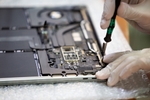
The wrong adapter can also be the trigger: check wattage and certification. If none of the previous tips work and your MacBook Pro or Air still refuses to charge, you may be looking at a hardware defect. A common source is the so-called logic board.
The logic board is the main board of the Mac and controls many essential functions, including charging. If components on it are defective, the battery won't charge.
Signs of a logic board defect include:
- MacBook still won't charge after an SMC reset
- Charging port feels loose or wobbles
- Unusual noises or smells when plugging in the charging cable
In this case, professional repair is usually the only option: the logic board needs fixing. DIY repair is rarely possible or sensible.
What that means for your data: In many cases only a single component on the logic board is defective. The usual fix for a charging fault on the board is to swap the whole logic board; we repair the board at component level instead – and because the SSD is soldered onto the board on all Apple Silicon Macs and most Intel models from 2016 on, your system and data stay exactly where they are.
Further technical causes
Other causes include contaminated charging ports (corrosion), faulty charge-controller firmware, or a defective USB-C port. Professionals measure voltages, current draw (PPBUS) and I/O resistance.
Contact corrosion from humidity, firmware errors in the charge controller, or defective voltage regulators on the logic board can also prevent charging. Professional diagnosis with an oscilloscope and a multimeter can pinpoint these problems.

What is actually broken when a MacBook won't charge – experience from our workshop
What ended up on the quote for machines with a charging problem and what that usually costs is shown in the overview – from our workshop with 20,000+ repairs since 2015, walk-in in Hamburg and mail-in together. In the free diagnosis we read out SMC data, charging currents and voltage curves that macOS does not show; that is how we see whether the battery really is the problem or the charging electronics are weak.
| Finding | Usual price |
|---|---|
| Logic board: charging circuit, power management | 200–400 € |
| Logic board: simple components (capacitors, small ICs) | 100–200 € |
| Battery | fixed price 180 € (MacBook Air) / 220 € (MacBook Pro) |
| USB-C port replacement | from 120 € |
| USB-C controller on the logic board | 200–400 € |
| MagSafe port, power adapter | after diagnosis |
| Cleaning after liquid (without board repair) | from 140 €, often under 200 € |
| Firmware / software | from 100 € |
All prices in euros incl. VAT; diagnosis and shipping are free.
How it splits up: On a good half of the machines a repair of the logic board was on the quote, on about every seventh a new battery, on about every sixth a cleaning after liquid and on a good one in ten the power adapter, the charging port or a USB-C port – often several come together. Cable and adapter usually sort themselves out during the self-check.
Intel or Apple Silicon makes a difference. On Intel MacBooks the battery is the cause much more often than on newer models. On MacBooks with M1 to M5 chips it is usually the logic board, the battery only rarely. If an Apple Silicon MacBook does not charge although adapter and cable work elsewhere, the board is therefore the first suspect.
Three cases from the last months
- MacBook Air 13" (2020) – battery replacement and top case cleaning (mail-in from Bruchsal): The customer had bought the Intel Air used and already defective: the battery did not charge, without the adapter the machine turned off immediately, and the fan spun up even without load. On the quote were a new battery and the cleaning of the top case. 260 €.
- MacBook Air 13" (M2, 2022) – logic board repair (walk-in from Winsen/Luhe): The Air suddenly stopped charging and did not turn on any more at intake. On the quote was the repair of the logic board. 340 €.
- MacBook Air 13" (2019) – battery replacement (mail-in from Stade): The Air did not charge any more: the battery stayed at 1%, without the adapter it turned off immediately, and the Mac reported "Service Recommended". On the quote was a new battery. 180 €.
All prices in euros incl. VAT.
Special cases
MacBook Pro won't charge – MagSafe 3 or USB-C
The MacBook Pro 14" and 16" from 2021 charges via MagSafe 3 and via every USB-C port; the 13" MacBook Pro with M1 or M2 and the Intel models from 2016 to 2020 charge only via USB-C, older models via MagSafe or MagSafe 2. On the MagSafe 3 models the LED tells a lot (see the LED meanings below). On the Intel MacBook Pro from 2016 to 2019 we see defective USB-C controllers particularly often in the workshop.
MacBook Air won't charge – the M1 only via USB-C
The MacBook Air with M1 and the Intel models from 2018 to 2020 charge only via USB-C: here the cross-check with another cable, another adapter and both ports pays off. From the Air with M2 (2022) there is MagSafe 3 with LED again, and it can also be charged via USB-C; older Air models charge via MagSafe or MagSafe 2. If an Air does not charge despite the adapter, the most common harmless reasons are a paused charge due to Optimized Battery Charging, a charger that is too weak or too much heat.
MagSafe charging issues (older MacBooks & M-series with MagSafe 3)
LED indicator meanings
- Green light: battery fully charged
- Amber light: charging, or charging paused
- Blinking amber: a charging problem – wipe connector and port dry, restart the Mac, try another cable
- No light: no power is reaching the Mac – check outlet, adapter and cable
Typical MagSafe problems
- Worn cable near the connector, the most common failure point
- Defective DC-In board inside the MacBook
- Faulty MagSafe adapter
What a repair of the charging port costs is in the post MacBook USB-C port or charging port defective.
Check battery health
View battery information
- Apple menu → System Settings → Battery shows the battery health
- For the cycle count: hold the Option key, choose Apple menu → System Information, then "Power"
- Check the "Condition" and "Cycle Count" values – Apple rates current MacBook batteries for 1,000 cycles, at which point they should still hold up to 80% of their original capacity
Condition levels
- Normal: battery is working normally
- Service Recommended: battery is holding less charge – replacement is due
How to read out the charge cycles and which values are normal: Check MacBook battery cycles and battery health.
Prevent charging problems
Recommended habits
- Use only genuine Apple adapters or certified alternatives
- Don't bend the cable sharply
- Keep ports clean and dry
- Always pull the connector, not the cable, when unplugging
- Pack adapters carefully when traveling
If nothing has helped
Then a hardware defect is highly likely – by our numbers usually on the logic board, more rarely the battery. The diagnosis is free, even if you decide against the repair afterwards: you get a fixed price and know what is defective. In Hamburg-Altona drop it off in person (no appointment), from the rest of Germany send it in free of charge by DHL. We give a 12-month warranty on work and parts on every repair. All prices by type of repair: What does a MacBook repair cost?
Frequently asked questions about MacBook Pro/Air charging
Why does my MacBook suddenly not charge any more?
First try another outlet, another cable and – with USB-C – another port, and check in the battery menu whether macOS has only paused charging. If the LED stays dark although the adapter works on another device, the power does not reach the board. In our workshop it was then a good half of the time the charging electronics on the logic board, then the battery, more rarely the charging port or the adapter. If you have already bought a new adapter and it still does not charge, you can save yourself the next purchase: on these machines the fault most often sat on the board.
Why does my MacBook no longer charge via USB-C?
Some USB-C cables carry data only and do not charge at all, and the adapter should deliver at least as many watts as the one that came with your Mac. With USB-C every port can charge – try them all with the original adapter. If it charges on one port but not on the other, the fault sits in the machine: in our workshop usually damage on the logic board, for example at the USB-C controller, more rarely the port alone. Replacing the USB-C port costs from 120 € with us, a repair of the USB-C controller on the logic board usually 200–400 € – each incl. VAT.
Why does my MacBook Air not charge although it is plugged in?
The most common harmless reasons are a paused charge due to Optimized Battery Charging, a charger that is too weak or too much heat – according to Apple, Mac laptops work best at 10 to 35 °C room temperature. The MacBook Air with M1 and the Intel models from 2018 to 2020 charge only via USB-C: here the cross-check with another cable, another adapter and both ports pays off. From the Air with M2 (2022) there is MagSafe 3 with LED again.
"Power Source: Power Adapter", but the battery is not charging – what does that mean?
The Mac is on the adapter, but the percentage does not rise; Apple calls this status "Not Charging". That is not always a defect: battery health management pauses charging to protect the battery and lets it drop to 93% or less before it charges again. An adapter that is too weak is often enough to run the Mac but not to charge it, and under heavy load the Mac uses more than the adapter delivers. If the message stays even with the original adapter and after a restart, it is a hardware case – in our workshop then usually the logic board, more rarely the battery.
My MacBook only charges to 80% – is the battery defective?
That is often intentional. Since macOS Big Sur, Optimized Battery Charging holds the battery at 80% in certain situations; the battery menu then says "Charging on Hold", and "Charge to Full Now" charges to 100% right away. Macs with Apple Silicon on macOS Tahoe 26.4 or later also have a charge limit between 80 and 100%. If charging stops at 80% even with Optimized Battery Charging switched off, the battery may be too warm. If the display hangs at a few percent and does not move overnight either, that is a hardware case – in our workshop it was usually the logic board here.
How can I revive my deeply discharged MacBook?
Connect the original adapter directly to the outlet and wait: after a long pause it can, according to Apple, take about 20 minutes on the adapter before a Mac can be used again, and a completely empty MacBook with Apple Silicon often shows no reaction at all in the first minutes. Then hold the power button for ten seconds. If nothing happens even after a night on the adapter, it is a hardware case – the free diagnosis clarifies whether the battery, the charging circuit or the logic board is behind it.
How can I deeply discharge my MacBook – and do I have to?
You do not have to run the battery flat on purpose or calibrate it: macOS calibrates the maximum capacity itself when needed, for example after a software update, and lithium-ion batteries have no memory effect – habitual deep discharging rather shortens their lifespan. It is gentler to leave Optimized Battery Charging switched on.
Can I charge my MacBook with a third-party adapter?
In principle yes, if it supports USB-C Power Delivery, is certified and delivers at least as many watts as the adapter that came with your Mac. Cheap, uncertified knock-off adapters often deliver unstable voltages and can damage the charging electronics. When in doubt, use the original adapter.
What does the repair cost if the MacBook won't charge?
The free diagnosis clarifies that first: you receive a fixed quote and then decide – deciding against the repair costs nothing. For orientation: battery at a fixed price of 180 € (MacBook Air) or 220 € (MacBook Pro), charging circuit and power management on the logic board 200–400 €, simple components 100–200 €, replacing the USB-C port from 120 €, USB-C controller 200–400 €, cleaning after liquid from 140 €, often under 200 €, firmware from 100 € – each incl. VAT. All prices by type of repair: What does a MacBook repair cost?