Remove Mac from iCloud

Introduction
When you send us a Mac for repair, certain repairs (hard drive replacement, SSD installation, data recovery or similar) require you to remove the Mac from your iCloud device list.
Important Note: Please make sure to tap "Remove This Device" (described below) and not "Erase This Device". If you tap "Erase This Device", all data on the Mac will be permanently deleted!
Remove the Mac from the list using your iPhone and the "Find My" app
When we ask you to remove your Mac from your iCloud device list, you may no longer have access to the Mac because it won't start.
In this case, the easiest way to remove the Mac from your iCloud device list is to use the "Find My" app on your iPhone.
- Unlock your iPhone.
- Open the "Find My" app.
- Tap "Devices" at the bottom of the app.
- In the list that appears, find and select the Mac you want to remove.
- On the next screen, scroll all the way down.
- Then tap "Remove This Device".
Once you confirm, the device is removed from the list, and you can send the Mac to us.
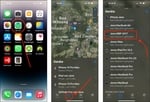

Screenshots – how it works on iPhone
To show you how the process works in detail, we've compiled screenshots of the procedure.
Need help with Mac problems? Talk to us!
If you're having problems with your MacBook Pro, MacBook Air or iMac that you can't solve, please contact us. We've seen almost everything and have a soft spot for old Mac models too.
If your MacBook is acting up, a repair with us is often easier and cheaper than you think.