Mac Finder - Simply Explained with 10 Practical Tips
New to Mac or switching from Windows? The Finder is your daily companion. This guide covers what the Finder is, how to use it, and 10 practical tips that will make your work more efficient.
What is the Finder?
Think of the Finder as the "home" of your files and programs on Mac. It's like a personal assistant that helps you navigate through all your photos, documents, and applications. The Finder makes it easy to find, organize, and open files.
Compared to Windows Explorer, which some of you might know from PCs, the Finder is specifically designed for Macs and is an essential part of macOS. With its clear, organized, and user-friendly interface, it helps you complete your tasks on Mac quickly and efficiently.
The Finder User Interface
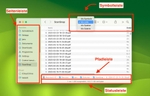
- The Sidebar gives you shortcuts to important folders, drives, and connected networks.
- At the top of the Finder window, you'll find the Toolbar with buttons for common actions.
- At the bottom, the Status bar shows useful information like available storage space.
- The Path bar shows which subdirectories you're currently in.
- Under View options, you can choose from Icon, List, Column, and Gallery view.
10 Practical Tips for Finder
- Drag frequently used folders to the sidebar for quick access.
- Use colored tags for organization.
- Command + N opens a new Finder window.
- Select a file and press the spacebar for a quick preview.
- Create Smart Folders that automatically collect files based on criteria.
- Command + Shift + . (period) toggles hidden files.
- Right-click the desktop and select "Use Stacks" to keep it tidy.
- Use tabs (Command + T) like in a browser to manage multiple folders in one window.
- Enable iCloud Drive to keep files synchronized across all devices.
- Command + Space opens Spotlight search for the entire Mac.

Folder Shortcuts: Jump Directly to Key Locations
With a Finder window open, these shortcuts take you straight to the most important folders:
- Cmd + Shift + D — jumps to Desktop
- Cmd + Shift + H — jumps to Home folder
- Cmd + Shift + I — opens iCloud Drive
- Cmd + Shift + U — opens Utilities
- Cmd + Option + L — opens Downloads
Using Multiple Finder Windows
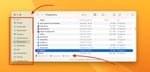
When copying or moving files, open two Finder windows side by side and drag files directly from one folder to the other. This saves you from navigating back and forth within a single window.
Tip: To copy a file within the same volume instead of moving it, hold the ALT key (Option) while dragging.
Official Apple Finder Documentation
Apple's official Finder documentation is available in Support Document HT201732 and the macOS online manual.
Common Problems and Solutions
- If Finder stops responding, restart it via Apple menu → "Force Quit".
- Slow performance? Free up storage space by deleting unnecessary files.
- Search not working? Make sure the search function is set up correctly.
- External drives not showing up? Check the connection and format of the drive.
For more complex problems, our Mac repair workshop is happy to help.