MacBook slow? Finding the cause – from full storage to battery and SSD
In short: first check how full the storage is (System Settings → General → Storage) and what runs automatically at every boot under "Login Items" – that often solves the problem already. On MacBooks with an M1 to M5 chip, in our experience full storage is usually behind it; on Intel models the workshop most often dealt with the drive – a new SSD or recovering the data from the old hard drive –, then the logic board, less often a cleaning, a reinstall or the battery. If the device stays sluggish despite free storage, the error analysis is free: on site in Hamburg-Altona or from anywhere in Germany by mail-in via emonis.com, with free DHL shipping both ways.
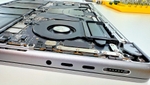
Your MacBook is slow – it stutters, boots slowly or keeps showing the beachball? Here is first what you can check yourself – ordered by the words customers use to describe the problem at intake. Where we have workshop figures, you will find what was behind it in the end. This applies to the MacBook Air and MacBook Pro from the old Intel model with a hard drive up to the M5 chip – and the first question is always: Intel or Apple Silicon? Apple menu → "About This Mac" shows it – "Chip: Apple M…" or "Processor: … Intel …" (how to find out). If the device no longer responds at all – screen frozen, even the mouse pointer stuck –, that is not a speed problem: how to force a restart is in the guide MacBook won't start or turn on.
Which case is yours?
Why is my MacBook so slow? Permanently sluggish, with everything
"It is just very slow", "too slow" – that is what the intake note says most often: no trigger, no single app, everything has been sluggish for weeks or months. First look at step 1 to see how full the storage is, then at "About This Mac" to see which chip is inside. On a MacBook with an M1 to M5 chip, nearly full storage is in our experience the most common reason – and it can usually be fixed without a workshop. On Intel models the workshop most often dealt with the drive – a new SSD for the old hard drive or the SSD that has become too small (see Old MacBook), or recovering the data from a failing drive –, then a repair on the logic board, less often a cleaning, a reinstall or the battery.
MacBook suddenly slow – from one day to the next
"Suddenly extremely slow since yesterday", often after a large download, a data migration or an update: open Activity Monitor (Applications → Utilities) and sort the "CPU" tab by load – a single process under constant heavy load is almost always the culprit; quit or update the app. Also check the storage (step 1): a single large download can fill a tight SSD to the brim. If both look normal, take a look at the battery: a weak battery can slow a MacBook down noticeably – so a suddenly sluggish MacBook does not necessarily mean the SSD or RAM is at its end. How to read the battery condition and cycle count is in MacBook battery cycles; when a replacement is due and what it costs, in MacBook battery replacement.
MacBook slow after an update
"Slow since the update to the new macOS": give the system a day or two first – why is explained in step 5. Then check the storage (step 1; an update needs space and leaves caches behind) and the login items, and install the pending updates of your apps. If an older Intel MacBook runs a macOS it is really too old for, that slows it down permanently – which macOS versions are available for download and how to install an older macOS is in Download macOS and create a boot stick. If the device does not start at all after the update, that is a case for the guide MacBook won't start. In the workshop there was no uniform result for this picture: from a reinstall to the SSD to the battery, everything came up.
MacBook keeps hanging – beachball, stutters, freezes briefly
"Keeps hanging", "the beachball all the time", "freezes for seconds": the first suspect is a memory shortage during use. Open Activity Monitor, "Memory" tab: if the "Memory Pressure" graph is yellow or red, close apps and browser tabs and check the "Swap Used" value (step 1). If only one app hangs, quit it with Option (⌥) + Command (⌘) + Esc and "Force Quit"; if the whole Mac hangs including the mouse pointer, it belongs in the guide MacBook won't start. When the hanging persisted, the logic board was on the cost estimate in the workshop.
MacBook boots slowly – takes forever to start
"Takes forever to boot", "nothing happens for minutes after logging in": the first cause is full storage (step 1), right after that comes the list of login items that launches with every boot. The quick counter-test is safe mode (step 5): there macOS loads no login items and only the extensions it needs itself – if the Mac runs noticeably faster after logging in, it is exactly this list. An Intel MacBook with a mechanical hard drive, on the other hand, boots slowly by design; then only an SSD helps (Old MacBook).
Old MacBook slow – hard drive instead of SSD
"It is just old, but actually still fine": on a MacBook Pro without a Retina display (up to 2012) the reason is usually the mechanical hard drive – the 13" entry model from mid-2012 shipped with a 500 GB hard drive (5,400 rpm), an SSD cost extra. Every app and system launch waits for the mechanics; on the Retina models up to 2015 it is more likely the SSD that has become too small. In older Intel MacBooks up to late 2015 (MacBook Air up to 2017) we fit a modern SSD, with data migration and a fresh macOS – SSD upgrade from €180 incl. VAT; what else is possible for your model is under MacBook upgrades. If the old hard drive makes noises or copy operations abort, back up your data first – if necessary with our help: MacBook data recovery. A Fusion Drive (hard drive plus small flash storage) was, according to Apple, an option for the iMac and Mac mini from late 2012, never in a MacBook – for a slow iMac, iMac repair is the right address.
MacBook slow and hot – the fan runs constantly
"Gets hot and then slow", "the fan runs all the time": heat slows things down – in our experience the system then reduces performance to protect itself. Check in Activity Monitor ("CPU" tab) whether a process generates constant load – the MacBook Air with an M1 to M5 chip has no fan; a warm housing is normal there under load. If the fan of a MacBook Pro runs at high speed permanently without any visible load in Activity Monitor, the device belongs in the workshop: there, these devices needed an internal cleaning, a repair on the logic board or top case, or a heat-sink replacement. What is normal with heat and when it is a warning sign is in MacBook running hot?
MacBook storage full? Clean up yourself in five steps
On M-chip Macs, CPU and GPU share the working memory (unified memory). When RAM runs short, macOS continuously swaps memory out to the SSD – the so-called swapping. For that the system needs free space on the SSD. When the drive is nearly full, exactly this swapping mechanism gets squeezed: the system stalls, apps launch slowly, the beachball spins. On top of that, in our experience the SSD itself performs worse when it has hardly any free space left. As a rule of thumb, keep at least 10–15% of your storage free – more on small SSDs (256 GB).
Step 1: Check storage usage and swap
- Open System Settings → General → Storage. You will see how full the SSD is and which categories occupy the space; macOS also suggests there what can be offloaded or deleted.
- In Activity Monitor (Applications → Utilities), the "Memory" tab shows "Swap Used" at the bottom and the "Memory Pressure" graph: green means, according to Apple, the Mac uses its memory efficiently; yellow, it will need more soon; red, it needs more now. Several gigabytes of swap combined with a nearly full SSD is the classic picture of a throttled M-Mac.
Step 2: The usual space hogs
- Downloads folder – installers and old ZIPs pile up unnoticed.
- Old device backups – select the connected device under "Locations" in Finder, click "Manage Backups…" in the General tab and delete outdated backups.
- Mail attachments and Messages history – years of chat attachments often occupy tens of gigabytes.
- Photos library – check whether "Optimize Mac Storage" is enabled in Photos settings.
- Leftovers from uninstalled apps – dragging apps to the Trash leaves caches and support files behind.
And afterwards: empty the Trash – nothing is really deleted until it is gone from there too.
Step 3: Clean out your login items
Everything listed under System Settings → General → Login Items (in newer macOS versions "Login Items & Extensions") launches automatically at every boot – each line costs startup time and keeps running in the background afterwards. Over the years, updaters, helpers and long-forgotten apps pile up there. Remove everything you do not use daily with the Remove button (the minus sign below the list), and go through the "Allow in the Background" list (in newer macOS versions "App Background Activity") as well.
Step 4: Two free tools we recommend
You do not need to buy anything for a thorough cleanup – two free programs are enough:
- OnyX (Titanium Software): the classic with a graphical interface. Clears system and app caches, runs maintenance scripts and rebuilds databases. Important: download exactly the version matching your macOS release – the website maps them clearly.
- Mole (open source on GitHub): a terminal tool for those who like it thorough. Once Mole is installed with
brew install mole,mo cleanclears deep-seated caches andmo uninstallremoves apps along with all leftover files.
Back up first: create a Time Machine backup before any major cleanup, and download both tools only from the official sources linked above.
Step 5: If it is not the storage – safe mode and Apple Diagnostics
If plenty of space is free and the MacBook is still slow, first check Activity Monitor ("CPU" tab) for a process under constant load – that points to a software problem. After a macOS update or a data migration, Spotlight may also need to index first – that can take a day or two and resolves itself. Safe mode is the next counter-test: according to Apple, macOS then loads no login items and only the extensions it needs itself, checks the startup volume and clears some system caches. Intel: hold the Shift key while powering on until the login window appears. Apple Silicon: hold the power button until the startup options appear, select the startup volume, then hold the Shift key and click "Continue in Safe Mode". If the Mac runs fast there, the brake is in software that loads during a normal start; a restart ends the mode. Finally, Apple Diagnostics shows whether a hardware component could be defective: on Apple Silicon hold the power button until the startup options appear, then hold Command (⌘) + D; on Intel Macs hold D while powering on. If the device stays sluggish after that, it is a case for the free analysis.
What is really behind "slow" in the end – experience from the workshop
What ended up on the cost estimate for "slow" and what that usually costs is shown in the overview – from our workshop with 20,000+ repairs since 2015, walk-ins in Hamburg and mail-ins combined. In the free analysis we check storage, drive, battery and temperatures and see whether software or hardware is the brake.
| Finding | Usual price |
|---|---|
| SSD upgrade on Intel MacBooks up to late 2015 (MacBook Air up to 2017; hard drive or SSD too small, with data migration) | from €180 |
| Battery (weak battery, device responds noticeably slowly) | fixed price €180 (MacBook Air) / €220 (MacBook Pro), also by mail-in |
| Firmware / software, reinstall | from €100 |
| Logic board: simple components (capacitors, small ICs) | €100–200 |
| Logic board: power management, SMC chip | €200–400 |
All prices in euros incl. VAT; analysis and shipping are free.
How it breaks down: most often it was the drive – a new SSD or recovering the data from the old hard drive, almost always on an Intel model –, then a repair on the logic board, less often a cleaning, a reinstall or the battery. Full storage, login items and a single process under constant load are usually resolved by the self-check already.
Intel or Apple Silicon makes the biggest difference here. Almost all devices that ended with a workshop finding were Intel models – hard drive or SSD, logic board, cleaning, firmware. The most common cause we see on MacBooks with an M1 to M5 chip is full storage; a logic-board finding occurs there too, but it is not the first suspect.
What this means for your data: on all MacBooks with Apple Silicon and on Intel models with the T2 chip (2018 to 2020), the SSD is soldered to the logic board; on older Intel MacBooks (up to 2015, MacBook Air up to 2017) it is usually a plug-in module. The usual response to a fault on the board is to replace the whole board; where possible we repair the board at component level – then the SSD with system and data stays exactly where it is. With an SSD upgrade in an older Intel MacBook we migrate your data to the new SSD; if the old hard drive already shows errors, securing the data comes first – if in doubt as data recovery.
Three cases from the past months
- MacBook Pro 13" (2012, Intel) – SSD upgrade with more RAM and a fresh macOS (walk-in from Farmsen-Berne): the customer declined selling the device and wanted to keep using it – the cost estimate listed the upgrade: a 480 GB SSD, 8 GB of RAM and a fresh macOS. €340.
- MacBook Pro 15" (2017, Intel) – battery replacement and logic-board repair (walk-in from the Neustadt): came into the workshop throttled and sluggish; the battery was already suspected at intake. On the bench it turned out: the old battery was disconnected, and the logic board accepted only 5 volts. So a battery replacement at the fixed price and one component on the board replaced – €420 in total.
- MacBook Pro 16" (2019, Intel) – heat-sink replacement (mailed in from the Germersheim district): according to the fault description, the device became extremely slow when warm, and the audio stuttered in the DJ software – the customer had already tried cleaning the fans and reinstalling the system. The cost estimate listed the heat sink – replaced, €140.
All prices in euros incl. VAT.
Special cases
Does more RAM help? Not on the M-chip
On M-chips the working memory is part of the chip package and cannot be upgraded – so the fix is freeing up storage, and choosing RAM and SSD more generously with your next purchase. The earlier 8 GB base models in particular swap heavily in everyday use and therefore react most sensitively to a full SSD. Apple itself says: free or unused memory does not necessarily mean better performance – what matters is memory pressure (step 1). On older Intel MacBooks something is often still possible – what applies to your model is under MacBook upgrades.
Only one app is slow – browsers and old Intel apps
"The browser hangs", "only one app is slow": dozens of tabs, high-resolution streaming or a single app that has got stuck generate constant load – Activity Monitor ("CPU" tab) shows the culprit, quitting or updating usually helps. On a Mac with Apple Silicon, old Intel apps run through Rosetta – Apple recommends the Apple Silicon version for optimal performance; whether an app is affected is shown in the Finder's Get Info window (⌘ + I) under "Kind: Application (Intel)". If the device stayed sluggish in the workshop anyway, the logic board ended up on the cost estimate for this picture too.
If nothing has helped
If the storage is free, the login list is short and the MacBook is still slow, it belongs in the workshop – on Intel models that most often meant the drive (a new SSD or data recovery from the old hard drive), then the logic board, less often a cleaning, a reinstall or the battery. The analysis is free, even if you decide against the repair afterwards: you get a fixed price and know what is slowing things down. In Hamburg-Altona drop it off in person (no appointment), from the rest of Germany mail it in free of charge via DHL. We give a 12-month warranty on every repair. All prices by repair type: What does a MacBook repair cost?
Frequently Asked Questions
Why is my MacBook so slow?
On MacBooks with an M1 to M5 chip the most common cause we see is a nearly full SSD: macOS swaps memory out to the SSD, and then the space for that is missing – the system stalls, apps launch slowly. Rule of thumb: keep at least 10–15% of storage free. On Intel models our workshop most often dealt with the drive – a new SSD for the old hard drive or the SSD that has become too small, or recovering the data from a failing drive –, then a repair on the logic board, less often a cleaning, a reinstall or the battery.
Why is my laptop suddenly so slow?
Open Activity Monitor (Applications → Utilities) and sort the "CPU" tab by load – a single process under constant heavy load is almost always the culprit. Also check the storage: a single large download can fill a tight SSD to the brim. If both look normal, take a look at the battery: a weak battery can slow a MacBook down noticeably – so a suddenly sluggish MacBook does not necessarily mean the SSD or RAM is at its end. More: MacBook battery replacement.
How much storage should be free on a Mac?
As a rule of thumb at least 10–15% of the SSD capacity, more on small SSDs (256 GB). Check under System Settings → General → Storage; Activity Monitor shows the swap usage and the "Memory Pressure" graph in the "Memory" tab – green means, according to Apple, the Mac uses its memory efficiently; yellow and red mean it will need more soon or needs more now.
How can I speed up and clean up my MacBook?
In this order: check storage usage and swap (System Settings → General → Storage, Activity Monitor → Memory), remove the usual space hogs (Downloads, old backups, Mail attachments, Photos library, leftovers from uninstalled apps) and empty the Trash, clean out the login items, clear the caches with OnyX and Mole – create a Time Machine backup first. If the MacBook stays slow despite free storage, Activity Monitor, safe mode and Apple Diagnostics help next, then the free analysis.
How do I clear the cache on my MacBook?
Easiest with OnyX (Titanium Software): it clears system and app caches, runs maintenance scripts and rebuilds databases – download exactly the version for your macOS release. Mole clears deep-seated caches with mo clean. According to Apple, safe mode also clears some system caches, which macOS rebuilds itself as needed. Create a Time Machine backup first.
How do I remove junk from my Mac?
System Settings → General → Storage shows which categories occupy the space. The usual space hogs: the Downloads folder, old device backups, Mail attachments and the Messages history, the Photos library (check whether "Optimize Mac Storage" is enabled) and leftovers from uninstalled apps – Mole removes those with mo uninstall along with all leftover files. Then empty the Trash, because nothing is really deleted until it is gone from there too.
Which free tools clean up a Mac?
OnyX by Titanium Software (graphical interface, caches and maintenance scripts) and Mole (open source on GitHub, terminal: brew install mole, then mo clean or mo uninstall). Create a Time Machine backup first and download both only from the official sources.
How do I free up memory on a Mac?
You do not have to – macOS manages its memory itself, and according to Apple, free or unused memory does not necessarily mean better performance. What helps: close apps and browser tabs, restart the Mac and look at the "Memory Pressure" graph in Activity Monitor – yellow or red means the Mac needs more memory for the running apps. Because macOS swaps to the SSD, it also needs free storage space for that.
Does more RAM help a slow MacBook?
On M-chips the memory is part of the chip package and cannot be upgraded. The fix is freeing up storage – and sizing RAM and SSD more generously on the next purchase; the earlier 8 GB base models in particular react sensitively to a full SSD. On older Intel MacBooks something is often still possible – what applies to your model is under MacBook upgrades.
How can I make my old Mac faster?
On a MacBook Pro without a Retina display (up to 2012) the reason is usually the mechanical hard drive – every app launch waits for the mechanics. In older Intel MacBooks (up to late 2015, MacBook Air up to 2017) we fit a modern SSD, with data migration and a fresh macOS (MacBook upgrades); on MacBooks with Apple Silicon only cleaning up helps. If an old Intel Mac runs a macOS it is really too old for, that slows it down permanently.
Why is my MacBook slow after the update?
Give the system some time – after a macOS update or a data migration, Spotlight needs to index first; that can take a day or two and resolves itself. Then check the storage (an update needs space and leaves caches behind) and the login items, and install the pending updates of your apps. If an older Intel MacBook runs a macOS it is really too old for, that slows it down permanently – which macOS versions are available for download and how to install an older macOS is in Download macOS and create a boot stick.
Does a weak battery make the MacBook slow?
Yes, it can: a weak battery can slow a MacBook down noticeably – so a slow MacBook does not necessarily mean the SSD or RAM is at its end. What it really is, the free analysis shows – more in MacBook battery replacement.
What to do when the Mac is too slow and nothing helps?
If the storage is free, the login list is short and the MacBook is still slow, it belongs in the workshop – on Intel models that most often meant the drive (a new SSD or data recovery from the old hard drive), then the logic board, less often a cleaning, a reinstall or the battery. The analysis is free, even if you decide against the repair afterwards: you get a fixed price and know what is slowing things down. Drop it off in person in Hamburg-Altona (no appointment) or mail it in free of charge via DHL from anywhere in Germany; we give a 12-month warranty on every repair.