iMac won't start or stays black? What helps now – and what it costs
In short: check the power cable at both ends and in a different outlet, unplug every accessory except keyboard and mouse, and hold the power button on the back for ten seconds – on an Intel iMac, then pull the power cable for 15 seconds and try again. If the iMac stays dark and silent, it is usually a hardware case – in the workshop most often the logic board, frequently together with a hard drive at the end of its life; if it hangs on the Apple logo, it is usually macOS, the firmware or the startup volume; if your data matters to you, do not keep switching it on (iMac data recovery). The diagnosis is free: in person in Hamburg-Altona or by mail-in from anywhere in Germany via emonis.com, with free DHL shipping both ways.
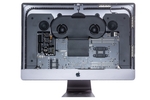
Your iMac won't turn on anymore, won't boot or stays black when you switch it on? This guide starts with what you can check yourself – ordered by what you are looking at right now, with the words customers use when they hand the device in. For each case we tell you what was most often broken in the workshop in the end – and whether the iMac is really broken or whether just a cable, a setting or a tired hard drive is behind it. It applies to the 21.5" and 27" Intel iMacs up to 2020, the iMac Pro and the 24" iMacs with M1, M3 and M4 chips. For a Mac mini that won't start, the same steps apply – you simply do the display test on the external monitor anyway. If it is about a MacBook, read MacBook Won't Start or Won't Turn On instead.
Liquid involved? Then please stop.
Did something spill over or into the iMac? Then skip every attempt to switch it on: pull the power cable, dry the outside, do not switch it on again, and bring or send the device in for professional cleaning as quickly as possible. Every start attempt drives current through damp contacts and turns a small fault into a big one. What counts in the first hours is in MacBook Got Wet? What to Do Now – it applies to the iMac just the same. More about water damage →
Which case is yours?
These are the words customers use to describe the problem when they hand the iMac in – find the case that matches yours.
iMac won't turn on anymore – nothing happens when you press the power button
"Won't turn on" – no fan, no startup chime, no picture, the power button on the back does not react at all. Go through steps 1 to 4 first: power cable at both ends, a different outlet, accessories off, power button held for ten seconds, on Intel iMacs the power cable pulled for 15 seconds. On the 24" iMac with Apple silicon the external power adapter is part of this – a second adapter of the same model, if you can get hold of one, is the quickest cross-check. If the iMac stays silent, either no power reaches the board, or the logic board itself does not start. In the workshop it was usually the logic board on these iMacs, often together with a hard drive that was at its end anyway; the power supply was the cause less often than many suspect. If your data matters to you, do not keep switching the iMac on – read iMac data recovery instead.
iMac shuts off right away or switches off suddenly – power supply faulty?
"Power supply", "power" or "power cut" is what these jobs say: the iMac switches off again right after you turn it on, or shuts down in the middle of work. The first suspect is the power supply – on Intel iMacs and the iMac Pro it sits inside behind the display, on the 24" iMac with Apple silicon outside, as a power brick on the cable. Check the power cable and the outlet (step 1), unplug all accessories (step 2) – Apple names connected devices as a typical cause when a Mac restarts or shuts down unexpectedly – and keep the vents clear. On Intel iMacs the SMC reset via the power cable (step 4) is worth doing after that. In the workshop it was sometimes the power supply, sometimes a failing hard drive, sometimes the logic board – only the diagnosis settles that. A power supply we replace; a logic board we repair at component level where possible – on Intel iMacs a replacement board is often the more economical route, and both options are then in the quote.
iMac starts but the screen stays black – black screen despite fan noise
"No picture" – a black screen although you can hear the fan and the hard drive, sometimes the startup chime too. Hold the power button for ten seconds until the iMac is off and start it again (step 3); then the display test from step 5: a flashlight at an angle on the display, and an external monitor. If the monitor shows the desktop, the computer is running and the fault sits in the display, the backlight or the graphics chip; if it shows nothing either, macOS is not even booting – continue with step 6. In the workshop it was usually the logic board on these iMacs, so the graphics or the board's power circuitry, less often the display itself.
iMac won't boot – stuck on the Apple logo or after the macOS update
"Update", "macOS" or "question mark" is what these jobs say: the iMac does not boot anymore after the update or stays on the Apple logo, often with a progress bar that does not move. If a macOS update is running, Apple says the logo and the bar often stay far longer than usual, and the bar can pause for a long time – which is why Apple recommends starting updates in the evening and letting them run overnight. Only when nothing happens even after a long wait, follow Apple's order: hold the power button until the iMac is off, and restart; if it hangs again, unplug the accessories and start again; then repair the startup volume with Disk Utility from Recovery and, if necessary, reinstall macOS – your apps and data are kept (step 6). If the iMac instead shows a flashing folder with a question mark or the message "A critical software update is required", you will find both in the guide MacBook Won't Start or Won't Turn On – it applies to the iMac just the same. In the workshop it was usually software or firmware here, so a clean reinstall with your data carried over; often a new SSD came with it.
Firmware damaged – for example by an interrupted update? On the iMac Pro, the 27" iMac from 2020 with the T2 chip and the 24" iMacs with Apple silicon it can be repaired from a second Mac without deleting any data – Apple calls this a revive in DFU mode. You need a second Mac running macOS 14 or later and a USB-C data cable; on the iMac, according to Apple, it goes into the USB-C port on the far right when you look at the back. Then pull the power cable, hold the power button, keep holding it for up to ten seconds while you plug the power cable back in, until the second Mac shows the DFU window in the Finder. How it continues from there is described under DFU mode; without a second Mac we take care of it.
iMac slow or slow to start – Fusion Drive, hard drive, SSD
"Slow", "hard drive" or "Fusion Drive" is what these jobs say: the iMac has become too slow or takes forever to start. Many Intel iMacs up to 2019 still run on a spinning hard drive or a Fusion Drive – according to Apple a hard drive and a small flash drive that macOS combines into one volume, offered as an option on iMacs from late 2012. Both age. First check whether the startup volume is almost full, and whether the Fusion Drive suddenly shows up in the Finder as two drives – then the pair has split; Apple describes how to recreate it from Recovery in Terminal, but that erases all data, so make a backup first. If the iMac cannot be sped up in Safe Mode either (step 6), it is usually the hardware. In the workshop it was the hard drive on roughly six out of ten of these iMacs: it is replaced by an SSD, macOS goes on fresh, and we carry over your data and programs – price after the free diagnosis, more in the iMac overview on the homepage.
iMac display stripes or screen flickers – graphics fault or display?
"Stripes", "spots" or "graphics" is what these jobs say: the picture shows stripes or flickers. If the stripes only appear once the iMac is warm, if it freezes or restarts while they show, and an external monitor shows the same picture, it is the graphics – a known fault on the Intel iMacs with a dedicated graphics chip. If the stripes sit fixed in one place, only on the iMac's display and not on the external monitor, it is the panel or its cable. In the workshop it was usually the logic board or the graphics chip on these iMacs – on Intel iMacs we replace the graphics chip or the socketed MXM graphics card specifically where possible, instead of the whole board (more about graphics repair) – less often the display itself; the display prices are in the table below.
iMac fan loud or running hot
"Fan loud" or "hot" is what these jobs say: the fan audibly spins up although nothing big is running. According to Apple the fans spin faster under load and in a warm room; keep the vents clear and check in Activity Monitor whether a process is maxing out the processor. If the fan stays loud at idle too, the SMC reset helps on Intel iMacs (step 4). In the workshop it was then sometimes a cleaning with fresh thermal paste, sometimes the hard drive, sometimes the logic board – the diagnosis decides.
Check it yourself: seven steps before anyone opens the iMac
The order is deliberate – from the quick to the laborious. Your data is not at risk in any of these steps.
Step 1: Power – power cable, outlet, power supply
Apple's first point: is the power cable undamaged and firmly seated at both ends – at the iMac and in a working outlet? Plug it in again at both ends and try a different outlet, directly in the wall instead of through a power strip or a switched socket. On the 24" iMac with Apple silicon (M1, M3, M4) the power supply sits outside the case: check the power brick, the cable to the outlet and the connector on the back; a second power adapter of the same model is the quickest cross-check. Intel iMacs and the iMac Pro have the power supply inside – here there is nothing to swap apart from the cable.
Step 2: Disconnect accessories
Printers, external drives, USB hubs, docking stations, mobile devices – everything off, only keyboard and mouse stay connected. Apple names connected devices as a typical cause when a Mac restarts or shuts down unexpectedly, and as a fixed step when it will not turn on at all. Then switch it on again.
Step 3: Force a restart
Hold the power button on the back for about ten seconds until the iMac is definitely off, wait briefly, then switch it on normally. This ends a frozen state; on iMacs with Apple silicon the SMC also resets itself automatically in the process. An overview of all key combinations is in the guide MacBook Won't Start or Won't Turn On; they apply to the iMac unchanged.
Step 4: Pull the power cable – the SMC reset on the Intel iMac
Shut the iMac down, pull the power cable, wait 15 seconds, plug the cable back in, wait another five seconds, switch it on – this is how Apple resets the SMC on Intel desktops, with and without the T2 chip. The SMC controls the power supply and the fans; the reset helps with an iMac that will not turn on, shuts off again right away, or whose fans stay loud at idle. On the iMac with Apple silicon this step is not needed.
Step 5: Computer or display? Listen, shine a light, second monitor
Put your ear to the back when you switch on: the fan, a hard drive spinning up or the startup chime, if your iMac has one, show that the computer is alive. If the display still stays dark, shine a flashlight at an angle onto the screen: if you can faintly make out the desktop or the login window, macOS is running and only the backlight has failed. Then connect an external monitor: if it shows a picture, the computer is fine and the fault sits in the display or on the way to it.
Step 6: Safe Mode, Recovery, Disk Utility
If the iMac gets as far as the Apple logo or a blank screen, the computer is usually fine, and macOS or the startup volume is the problem. Apple's route for both: start from Recovery (Intel: Command + R right after switching on; Apple silicon: hold the power button until the startup options appear, then "Options" and "Continue") and repair the startup volume in Disk Utility with "First Aid"; if the fault remains, reinstall macOS from Recovery – according to Apple your apps and personal data are not removed. Before that, Safe Mode is worth a try (Intel: hold Shift while switching on; Apple silicon: in the startup options select the volume and click "Continue in Safe Mode" while holding Shift): it does not load certain software and clears system caches. On Intel iMacs the NVRAM reset helps in addition: hold Option + Command + P + R for about 20 seconds right after switching on.
Step 7: Apple Diagnostics
Disconnect everything except keyboard, mouse and power cable. iMac with Apple silicon: hold the power button until the startup options appear, then hold Command (⌘) + D; Intel iMac: hold D right after switching on. Apple Diagnostics reports detected hardware faults with a reference code – according to Apple a code starting with VDH points to a storage device, VFD to the display or graphics processor. Bring the code along to the diagnosis.
What is actually broken in the end on an iMac that won't start – experience from the workshop
What ended up on the quote for iMacs with startup problems is shown in the overview – from our workshop with 20,000+ repairs since 2015, drop-offs in Hamburg and mail-ins combined. On the iMac there are fixed prices only for the display replacement, the same as in the iMac overview on the homepage; everything else – power supply, logic board, graphics chip, hard drive, firmware – depends on the findings and gets a fixed price in the free diagnosis.
| Finding | Usual price |
|---|---|
| Display iMac 21.5" HD | €340 |
| Display iMac 21.5" 4K | €440 |
| Display iMac 24" (M1/M3/M4) | €740 |
| Display iMac 27" QHD | €420 |
| Display iMac 27" 5K | €620 |
| Display vintage iMacs | from €260 |
| Power supply (Intel iMac, iMac Pro) | after free diagnosis |
| Logic board – component-level repair or replacement board, graphics chip or MXM card | after free diagnosis |
| Hard drive or Fusion Drive replaced by an SSD, incl. macOS and data transfer | after free diagnosis |
| Firmware, macOS reinstall with data transfer | after free diagnosis |
| Cleaning, thermal paste, fan | after free diagnosis |
| Data recovery | after free diagnosis |
All prices in euros incl. VAT; analysis and shipping are free.
How it breaks down: On roughly every third iMac a new SSD or a data recovery was on the quote, on about every fourth the logic board – repair or replacement board – on about every fourth firmware or macOS – reinstall and data transfer – on about every tenth a cleaning with fresh thermal paste; power supply and display came up less often, plus a remainder of fan, speaker, camera and other items. Often several things come together.
Intel or Apple silicon makes a difference. Almost all iMacs that come to us with startup problems are Intel models – with a spinning hard drive or Fusion Drive, on many models a dedicated graphics chip, and an internal power supply: parts that age and can be replaced or repaired individually. The 24" iMacs with M1, M3 and M4 chips we have seen only occasionally so far; on them the power supply sits outside, and processor and graphics are in one chip – if such an iMac will not start and the external power adapter is fine, the logic board remains the first suspect, and we repair it at component level because the data lives on it.
What this means for your data: On Intel iMacs up to 2019 the hard drive or SSD can be removed and read out directly – even when the computer itself no longer starts. On the iMac Pro, the 27" iMac from 2020 with the T2 chip and the 24" iMacs with Apple silicon the data is tied to the logic board; on these models we repair the board at component level so the data stays where it is. On iMacs that reach us with the note "data important" – whatever the symptom – a data recovery or a new SSD was on the quote in about half of the cases. How data recovery works: iMac data recovery.
Three cases from recent months
- iMac Pro (2017) – cleaned and thermal paste renewed (shipped from Mecklenburg-Vorpommern): Arrived by post: fan loud, the iMac Pro got hot quickly, the picture dropped out now and then and the computer went to sleep, fastest when gaming; blowing out the dust helped only partly. In the workshop: cleaning and fresh thermal paste. €160.
- iMac 27" (2019) – power supply replaced and logic board cleaned (in person from Hamburg-Iserbrook): After the holidays the iMac would not turn on anymore. In the workshop: power supply replaced, plus the logic board cleaned. €340.
- iMac 27" (2015) – 1 TB SSD installed and macOS Sequoia installed (shipped from Rastatt, business customer): Arrived in its original box with the request to replace the hard drive and install a newer macOS. In the workshop: 1 TB SSD installed and macOS Sequoia freshly installed. €360.
All prices in euros incl. VAT.
Special cases
DIY RAM upgrade on an iMac Pro – €4,000 of damage
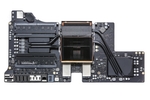
A customer wanted to upgrade the RAM of his iMac Pro (2017, Intel) to 128 GB. Our quote at the time was around €400, because the logic board has to come out completely for this – he tried it himself. When he lifted the display, the panel broke with a crack almost across the whole surface; when he removed the logic board, components broke off, and the attempt to solder them back on himself set them crooked on the board. Display and logic board were destroyed, the RAM upgrade no longer possible: a new display, a new logic board and labor would have cost around €4,000 – an economic total loss. An iMac Pro logic board is not a hobby project unless you regularly solder under a microscope; the few euros of labor saved stand against thousands of euros of damage. For context: on the 27" Intel iMac the RAM can be upgraded yourself through a door, according to Apple – on the iMac Pro and most 21.5" iMacs it sits where the work belongs in a workshop, and on the 21.5" iMac from late 2015 it cannot be upgraded at all, according to Apple.
It also got expensive without a screwdriver: another iMac in the same price class arrived after a transport without adequate securing – display broken, logic board bent, hard drive and power supply dead, case warped; over €2,500 in repair costs, likewise an economic total loss. In both cases the important data, working components, RAM and other small parts could be saved. Photograph the condition before every transport and check whether your home contents or electronics insurance covers transport damage – what insurers pay for Mac damage is in Will My Insurance Pay for MacBook Water Damage / Display Replacement?
Packing the iMac for shipping or for the drive to us: best in its original box, otherwise in a sturdy box with plenty of padding around display and stand (blanket, bubble wrap), fixed so that nothing can shift; in the car, strap it in and stack nothing on top. Create the free DHL shipping label online at emonis.com; how shipping works step by step is in Mail-In MacBook Repair: How Shipping Your Mac to Us Works – iMacs travel the same way.
If nothing has helped
Then there is most likely a hardware defect – by our numbers across all startup problems most often a hard drive or SSD at the end of its life, then logic board and firmware. The diagnosis is free, even if you decide against the repair afterwards: you get a fixed price and know what is broken. In Hamburg-Altona drop it off in person (no appointment needed), from the rest of Germany send it in free of charge via DHL – all iMac services at a glance at emonis.com/en/imac-repair. Every repair comes with a 12-month warranty. Whether a repair is still worth it on an older iMac is covered in What Does a MacBook Repair Cost? And When Is It Worth It?; how long it takes, in How long does a MacBook repair take?
Frequently Asked Questions
What should I do if my iMac won't boot anymore?
First check the power cable at both ends and in a different outlet, unplug every accessory except keyboard and mouse, and hold the power button on the back for ten seconds; on an Intel iMac, then pull the power cable for 15 seconds and try again. If the iMac gets as far as the Apple logo or a blank screen, it is usually macOS, the firmware or the startup volume: start from Recovery, repair the startup volume with Disk Utility and, if necessary, reinstall macOS – your apps and data are kept. If it stays dark and silent, it is usually a hardware case – in our workshop most often the logic board, frequently together with a hard drive at the end of its life.
Why won't my iMac turn on anymore?
No fan, no startup chime, no picture: then either no power reaches the board, or the logic board itself does not start. Check the power cable, the outlet and – on the 24" iMac with Apple silicon – the external power adapter, unplug the accessories and hold the power button for ten seconds. In our workshop it was usually the logic board on these iMacs, often together with a hard drive that was at its end anyway; the power supply was the cause less often than many suspect. If your data matters to you, do not keep switching the iMac on – the free diagnosis settles what is broken.
iMac won't turn on, nothing happens: what do I check first?
Apple's first point: is the power cable undamaged and firmly seated at both ends – at the iMac and in a working outlet? Plug it in again and try a different outlet directly in the wall instead of through a power strip or a switched socket. On the 24" iMac with Apple silicon also check the power brick, the cable to the outlet and the connector on the back; Intel iMacs and the iMac Pro have the power supply inside. Then disconnect the accessories and hold the power button for about ten seconds; on Intel iMacs, then pull the power cable for 15 seconds.
What can I do if my iMac starts but the screen stays black?
A black screen on an iMac you can hear running: hold the power button for ten seconds until the iMac is off, and start it again. Then the display test: shine a flashlight at an angle onto the display – if you can faintly make out the desktop, macOS is running and only the backlight has failed – and connect an external monitor. If it shows the desktop, the computer is running and the fault sits in the display, the backlight or the graphics chip; if it shows nothing either, macOS is not even booting. In our workshop it was usually the logic board on these iMacs, so the graphics or the board's power circuitry, less often the display itself.
What can I do if my iMac is stuck on the Apple logo?
If a macOS update is running, Apple says the logo and the progress bar often stay far longer than usual – only step in when nothing happens even after a long wait. Then follow Apple's order: hold the power button until the iMac is off, and restart; if it hangs again, unplug the accessories and start again; then repair the startup volume with Disk Utility from Recovery and, if necessary, reinstall macOS – your apps and data are kept. In our workshop it was usually software or firmware here, so a clean reinstall with your data carried over; often a new SSD came with it.
Why won't my iMac start after the macOS update?
In our workshop it was usually software or firmware on these iMacs, so a clean reinstall with your data carried over; often a new SSD came with it. If the update is still running, Apple says the Apple logo and the bar often stay far longer than usual – only when nothing happens even after a long wait: start from Recovery, repair the startup volume with First Aid and, if necessary, reinstall macOS – according to Apple, apps and personal data are not removed. If the iMac shows a flashing folder with a question mark or the message "A critical software update is required", you will find both in the guide MacBook Won't Start or Won't Turn On. On the iMac Pro, the 27" iMac from 2020 with the T2 chip and the 24" iMacs with Apple silicon, damaged firmware can be repaired from a second Mac in DFU mode without deleting any data – without a second Mac we take care of it.
Why does my iMac shut off right away – is the power supply faulty?
The power supply is the first suspect – on Intel iMacs and the iMac Pro it sits inside behind the display, on the 24" iMac with Apple silicon outside, as a power brick on the cable. Check the power cable and the outlet, unplug all accessories and, on Intel iMacs, do the SMC reset via the power cable: shut down, pull the cable, wait 15 seconds, plug it in, wait five seconds, switch on. In our workshop it was sometimes the power supply, sometimes a failing hard drive, sometimes the logic board – only the diagnosis settles that. A power supply we replace; a logic board we repair at component level where possible – on Intel iMacs a replacement board is often the more economical route, and both options are then in the quote.
Why does my iMac switch off suddenly?
Apple names connected devices as a typical cause when a Mac restarts or shuts down unexpectedly: unplug printers, drives, hubs and docking stations and reconnect them one at a time. Keep the vents clear, and on Intel iMacs do the SMC reset via the power cable. If it keeps happening, it is hardware – in our workshop sometimes the power supply, sometimes the hard drive, sometimes the logic board; the free diagnosis settles it.
Why is my iMac too slow or so slow to start?
Many Intel iMacs up to 2019 still run on a spinning hard drive or a Fusion Drive – according to Apple a hard drive and a small flash drive that macOS combines into one volume. Both age. Check whether the startup volume is almost full and whether the Fusion Drive suddenly shows up in the Finder as two drives – then the pair has split; Apple describes how to recreate it from Recovery in Terminal, but that erases all data, so make a backup first. If the iMac cannot be sped up in Safe Mode either, it is usually the hardware: in our workshop it was the hard drive on roughly six out of ten of these iMacs – it is replaced by an SSD, macOS goes on fresh, and we carry over your data and programs; the price is fixed after the free diagnosis.
Stripes or a flickering picture on the iMac – graphics fault or display?
If the stripes only appear once the iMac is warm, if it freezes or restarts while they show, and an external monitor shows the same picture, it is the graphics – a known fault on the Intel iMacs with a dedicated graphics chip. If the stripes sit fixed in one place, only on the iMac's display and not on the external monitor, it is the panel or its cable. In our workshop it was usually the logic board or the graphics chip on these iMacs – on Intel iMacs we replace the graphics chip or the socketed MXM graphics card specifically where possible, instead of the whole board – less often the display itself. More about graphics repair →
What does an iMac repair cost?
The free diagnosis settles that first: you receive a fixed quote and decide only then – deciding against the repair costs nothing. On the iMac there are fixed prices only for the display replacement; the prices per model are in the table above and in the iMac overview on the homepage. Power supply, logic board, graphics chip, hard drive or SSD, firmware, cleaning and data recovery get a fixed price in the diagnosis. Every repair comes with a 12-month warranty. All prices by repair type: What does a MacBook repair cost?