MacBook Screen Black or Suddenly Goes Black? What Helps Now
In short: press a key and then the brightness-up key, connect the charger and wait up to 20 minutes, hold the power button for ten seconds and restart; then shine a flashlight at an angle onto the dark display and, if you can, connect an external monitor. If the MacBook keeps running – fan, sound or keyboard backlight – and the picture still stays away, it's usually a hardware case – in the workshop most often the logic board or the display. The analysis is free: in person in Hamburg-Altona or by mail-in from anywhere in Germany via emonis.com, with free DHL shipping both ways.
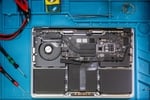
The screen of your MacBook is black, but the machine seems to be running? This guide starts with what you can check yourself – sorted by what you have in front of you, in the words customers use when they hand the device in. For each case we tell you what usually turned out to be broken in the workshop. It applies to the MacBook Air and MacBook Pro from the Intel models to the M5 chip. Three neighboring cases have their own guides: if the device shows no sign of life at all – no fan, no sound, no light, even after a while on the charger – that's a startup problem, covered in MacBook won't start or won't turn on. If the picture flickers, shows stripes, spots or cracks, or drops out depending on the lid angle, you want MacBook display flickering or showing stripes. And an iMac that stays black is a case of its own – see iMac won't start.
Liquid involved? Then no key combinations.
Did coffee, tea or water get into the device before the screen went black? Then don't try any key combinations or restarts: switch the device off (hold the power button for ten seconds), disconnect the charger, dry the outside and bring it in or send it in for professional cleaning as quickly as possible. As long as the board is powered, wet contacts keep corroding – the sooner the device is with us, the better the chances that a cleaning is enough instead of a board repair. What to do in the first hours: MacBook water damage – what to do? More about water damage →
Which case is yours?
This is how customers describe the problem when they hand the device in – find the case that matches your machine. If the picture only goes black when you open the lid further, or depends on the angle, that belongs in the display guide: picture loss depending on the angle and Flexgate.
MacBook turns on but the screen stays black
"Turns on, but no picture" – by far the most common description: the fan runs or the startup chime plays, the keyboard backlight comes on, with MagSafe the LED on the connector lights up – only the display stays black. Go through steps 1 to 3 first (brightness, charger, forced restart), then steps 4 and 5: if you can faintly make out outlines in the flashlight beam, only the backlight has failed; if an external monitor shows a picture, the fault is in the display or on the way to it; if the monitor stays dark too, it's more likely on the logic board. In the workshop this description ended with the logicboard about half the time, then the display, occasionally the SSD or the firmware. If the device shows no sign of life at all, the problem isn't the display but the startup: MacBook won't start or won't turn on.
MacBook Pro black screen but not dead – fan, sound, keyboard backlight
"Black but not dead" – that's how the question goes for the MacBook Pro, and there the signs of life are the clearest: the fan spins up, the startup chime plays, the keyboard backlight comes on, and on the 14" and 16" models from 2021 the MagSafe LED on the connector lights up as soon as the charger is plugged in. A MacBook Air with an Apple chip has no fan – there you're left with the startup chime, the keyboard backlight and, on the Air from 2022, the MagSafe LED. If any of these signs is there, it's a screen problem, not a startup problem: continue as in the first case – steps 1 to 3, then flashlight and external monitor. On the Intel MacBook Pro 15" and 16" with a dedicated graphics chip (2011 to 2019) the graphics chip joins the list of causes; then the external monitor stays dark too – more on that in the workshop section below. In the workshop this case ended like the first: logic board ahead of display.
MacBook screen goes black – suddenly, in the middle of work
"Suddenly goes black while working" – in the middle of work the picture is gone, sometimes the sound carries on, sometimes it's silent. What matters is whether the machine is still running: if you can still hear the fan or the music, only the display has hung – press a key, turn the brightness up, otherwise force a restart (step 3). If the MacBook switches off completely instead, often despite showing remaining charge, that's not a screen problem – check the battery and the power supply: MacBook battery replacement. If the picture stays away after the restart, or the dropout keeps coming back, in the workshop it was the logic board or the display, occasionally a cleaning after liquid or the power supply.
MacBook Pro won't start anymore – black screen (same for the MacBook Air)
"MacBook Air won't start anymore, black screen" – the request reads the same for the Pro, and here one detail decides, one that many customers only mention when they hand the device in: does anything happen at all when you press the power button? Watch for the keyboard backlight, sound and – on the MacBook Pro 14" and 16" from 2021 and the MacBook Air from 2022 – the MagSafe LED on the connector (it glows amber while charging or while charging is paused, green when the battery is full). Hold the power button for ten seconds (the Touch ID button on models with Touch ID) and then press it again – on a Mac with an Apple chip, keep holding it this time: if the startup options window appears, the display works – then it's a startup problem, not a screen problem. If everything stays dark and silent, the way forward is the guide MacBook won't start or won't turn on – SMC reset, DFU mode, Apple logo, update and drop damage are covered there. If the device shows signs of life but no picture, the first case above applies. What's added on the Intel MacBook Pro with a dedicated graphics chip is in the workshop section further down.
MacBook screen dark but faintly visible – backlight
"You can see something very faintly" – the display isn't black but dark: with a flashlight held at an angle to the display you can make out the Dock, windows or the mouse pointer. Then the panel works and only the backlight has failed. Still check the brightness key first (step 1) – a display turned down to zero looks exactly the same. We see this case less often; in the workshop it was then the display – the backlight can be repaired, the panel stays (from €220 incl. VAT) – but the logic board, the topcase or a cleaning after liquid also came up.
MacBook screen stays black: five steps from the switch to the monitor
The order is deliberate – from the harmless to the telling. Your data is not at risk in any of these steps.
Step 1: Is the display just off? Key, brightness, Lock Screen
Press a key or tap the trackpad – a sleeping display wakes up that way. Then the brightness: the top row of keys holds the keys with the sun symbol that control the display brightness; press the key with the larger sun (increase brightness) several times (depending on your settings, while holding the fn key; on models with a Touch Bar, in the Control Strip). A display turned down to zero looks like a broken one. If the display always goes off after a short time, that's usually a setting: under Apple menu → System Settings → Lock Screen, "Turn display off on battery when inactive" and "Turn display off on power adapter when inactive" set when the display switches off. Also unplug accessories such as a monitor, dock or hub as a test.
Step 2: Is the machine running at all? Connect the charger, check for signs of life
Connect the original charger directly to the Mac, not through a hub or dock, and to a wall outlet without a power strip. An empty battery is the most harmless explanation: after a long break it can take, according to Apple, 20 minutes on the charger before a Mac can be used again. Watch for signs of life while you wait – fan, startup chime, keyboard backlight, with MagSafe the LED on the connector. If they are there, the machine is running and only the picture is missing: continue with step 3. If there are none, even after the waiting time, your problem isn't the display but the startup: MacBook won't start or won't turn on.
Step 3: Has macOS hung? Force a restart
Hold the power button for about ten seconds until the device is off – on laptops with Touch ID that's the Touch ID button – wait a few seconds and press it again. On Macs with an Apple chip the startup options appear if you keep holding the button while switching on: if you see that window, the display works, and the problem is with the startup or macOS – then continue in the guide MacBook won't start. If the restart only helps for a short time, or after logging in only the mouse pointer is left on a black background, start in safe mode (box below): it loads no login items and no third-party fonts and clears system caches. If the picture still stays away although the machine is running, continue with step 4.
Step 4: Does the panel still work? The flashlight test
Darken the room and shine a flashlight – the one on your phone is enough – at an angle onto the display, ideally into a corner. If you can faintly make out outlines – the Dock, a window, the mouse pointer – the panel works and only the backlight has failed. That's a different case from a dead panel: the backlight can be repaired, the panel stays. If it stays completely black even in the flashlight beam, either no picture signal is arriving or the panel itself is defective – step 5 settles that.
Step 5: Is a picture coming out of the machine? External monitor
Connect a monitor or TV – directly to a port on the Mac, not through a hub or dock; an adapter must support DisplayPort Alt Mode, Thunderbolt 3 or Thunderbolt 4. If macOS doesn't recognize the monitor right away, put the Mac to sleep and wake it again, or in System Settings → Displays hold the Option key (⌥) until the "Detect Displays" button appears. If the monitor shows a clean picture, the MacBook is running – the fault then lies in the display or on the way to it: panel, backlight, display cable or the display circuitry on the board. If the external monitor stays black too although the machine is running, the fault sits before the display – usually on the logic board, on the Intel MacBook Pro with a dedicated graphics chip also in the graphics chip itself. In both cases the self-test ends here; what happens next in the workshop is below.
Which key combination for a black screen?
Wake the display: press any key or tap the trackpad. Brightness: the keys with the sun symbol in the top row, depending on your settings, while holding the fn key. Put the display to sleep and wake it on purpose: Control + Shift + power button (built-in keyboards without Touch ID), then press a key. Force a restart: hold the power button or Touch ID for about ten seconds, then press again – Intel and Apple chip alike; on built-in keyboards without Touch ID also Control + Command (⌘) + power button. Safe mode, Apple chip (M1–M5): shut down the Mac, press and hold the power button until the startup options appear, select the startup disk, hold Shift and click "Continue in Safe Mode". Safe mode, Intel: hold Shift immediately when switching on until the login window appears. In safe mode, "Safe Boot" may appear in red in the top right of the login window; you can be sure if you hold the Option key (⌥), open "System Information" from the Apple menu and look under "Software" for "Boot Mode: Safe". SMC reset (Intel), NVRAM reset and DFU mode (Apple chip) belong to the startup problem and are in the guide MacBook won't start. Which chip is in your Mac: Apple Silicon or Intel?
MacBook black screen – what is actually broken in the end (experience from the workshop)
What ended up on the quote for machines without a picture, and what that usually costs, is in the overview – from our workshop with 20,000+ repairs since 2015, drop-offs in Hamburg and mail-ins together. In the free analysis we settle whether the display or the board is the problem before a part is ordered.
| Finding | Usual price |
|---|---|
| Backlight repair (panel stays) | from €220 |
| Panel replacement (lid, camera and cables stay original) | €420 (13") · €480 (15") · €740 (14" and 16" from 2021) · €580 (16" Intel, 2019) · all models |
| Repair of your own display, depending on the damage | €180–740 |
| Logic board: simple components (capacitors, small ICs) | €100–200 |
| Logic board: power management, charging circuits, SMC | €200–400 |
| Logic board: CPU/GPU or NAND replacement | €400–600 |
| Graphics chip (Intel MacBook Pro with dedicated GPU) | from €240 |
| Cleaning after liquid (without board repair) | from €140, often under €200 |
| Firmware / software | from €100 |
| SSD defective, data recovery | after analysis; data recovery from €150 |
All prices in euros incl. VAT; shipping and analysis are free.
How it breaks down: for just under half of the machines the display was on the quote, for just under four in ten the logic board, for roughly one in ten the keyboard or topcase was added, or a cleaning after liquid; the SSD, battery, charger or firmware were rarer – often several things come together. Settings and a hung macOS are usually sorted out in the self-test.
Apple Silicon or Intel – a difference when it comes to graphics. On the M1 to M5 models the graphics unit is part of the chip; there is no replaceable graphics chip, and genuine GPU failures practically never occur there – on these machines a black picture points to the display, the backlight, the logic board or water damage. On the Intel MacBook Pro 15" and 16" with a dedicated graphics chip (2011 to 2019), by contrast, the GPU itself can be the reason; then the external monitor stays dark too. The usual answer in that case is replacing the whole logic board; we replace the graphics chip at component level, from €240.
What this means for your data: on all MacBooks with Apple Silicon and most Intel MacBooks from 2016 the SSD is soldered to the logic board. The usual answer to a fault on the board is replacing the whole board; we repair the board at component level, and the SSD with your system and data stays exactly where it is – what a logic board defect is and how repair instead of replacement works: MacBook logic board defect. If the machine no longer starts at all and the data matters, stop switching it on – how it goes on from there is under MacBook data recovery.
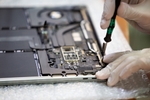
Three cases from the past months
- MacBook Air 13" (M2, 2022) – panel replacement (shipped from the Kassel area): The display had cracked in a bottom corner and then stayed black across the whole screen, at times with colorful picture artifacts. Only the panel was replaced. €420.
- MacBook Air 13" (M4, 2025) – logic board repair (in person from Hamburg-Ottensen): The MacBook Air turned on but showed no picture. In the workshop it was the logic board – it was repaired. €320.
- MacBook Pro 14" (2021) – panel replacement (in person from Hamburg-Wilhelmsburg): The MacBook Pro turned on, only the picture stayed off. In the workshop it was the display – the panel was replaced. €740.
All prices in euros incl. VAT.
Special cases – and where they belong
Lid closed, monitor connected: for closed-lid use with an external monitor Apple recommends the charger, an external keyboard and a mouse – if one of them is missing, a "black screen" in clamshell mode often isn't one.
Black when opening the lid or depending on the angle: if the picture only comes with the lid slightly open, your case is in the display guide: picture loss depending on the angle and Flexgate.
Black after the macOS update or with the Apple logo: if after an update the picture stops at the Apple logo, at the progress bar or goes black after the logo, the display works – it's a startup problem, explained step by step in MacBook won't start or won't turn on.
If nothing helped
Then there is most likely a hardware defect – by our numbers most often the display or the logic board. The analysis is free, even if you decide against the repair afterwards: you get a fixed price and know what's broken. In Hamburg-Altona drop it off in person (no appointment needed), from the rest of Germany send it in for free via DHL. Depending on the finding it then continues as a MacBook display repair or a MacBook logic board repair. Every repair comes with a 12-month warranty on work and parts. All prices by repair type: What does a MacBook repair cost?
Frequently Asked Questions
Which key combination helps when the screen stays black?
There is no secret combination for the display – it's four simple moves: any key or the trackpad wakes a sleeping display; the keys with the sun symbol in the top row control the brightness; Control + Shift + power button puts the display to sleep on purpose on built-in keyboards without Touch ID, another key wakes it; holding the power button or Touch ID for about ten seconds forces a restart – on Intel and Apple chip alike. If only the mouse pointer is left afterwards, safe mode helps: on an Apple chip hold the power button until the startup options appear, select the startup disk and click "Continue in Safe Mode" while holding Shift; on Intel hold Shift while switching on. SMC reset, NVRAM reset and DFU mode belong to the startup problem: MacBook won't start or won't turn on.
MacBook turns on but the screen stays black – what to do?
First brightness, charger and a forced restart (power button for ten seconds). Then the flashlight test: if you can faintly see outlines when lighting the display at an angle, only the backlight has failed. If an external monitor shows a picture, the fault is in the display or on the way to it; if it stays dark too, it's more likely on the logic board. In our workshop this description ended with the logic board about half the time, then the display, occasionally the SSD or the firmware. If the device shows no sign of life at all – no fan, no sound, no light – it's a startup problem: MacBook won't start or won't turn on.
Why does my MacBook screen suddenly go black?
What matters is whether the machine is still running. If you can still hear the fan or the music, only the display has hung: press a key, turn the brightness up, otherwise force a restart. If the display regularly goes off after a short time, that's usually the setting "Turn display off on battery when inactive" under System Settings → Lock Screen. If the MacBook switches off completely instead, that's not a screen problem – check the battery and the power supply: MacBook battery replacement. If the picture stays away after the restart, or the dropout keeps coming back, in our workshop it was the logic board or the display, occasionally a cleaning after liquid or the power supply.
Why is my MacBook screen black and only shows the mouse pointer?
The mouse pointer is good news: the panel, the backlight and the graphics output work – macOS has hung. Hold the power button or Touch ID for ten seconds and restart. If the black desktop with the mouse pointer comes back, start in safe mode (Apple chip: hold the power button until the startup options appear, select the startup disk, hold Shift and click "Continue in Safe Mode"; Intel: hold Shift while switching on) – it loads no login items and clears system caches. If an external monitor or a dock is connected, unplug it as a test. If it still stays that way, the free analysis settles whether hardware is behind it after all.
Why does my MacBook screen go off or dim after a short time?
Usually that's intended: under Apple menu → System Settings → Lock Screen, "Turn display off on battery when inactive" and "Turn display off on power adapter when inactive" set after how long the display switches off. A key or the trackpad wakes it again; the keys with the sun symbol control the brightness. If, on the other hand, the picture keeps going black in the middle of work although the machine keeps running, it's a hardware case – in our workshop the logic board or the display. If the whole MacBook switches off, check the battery and the power supply: MacBook battery replacement.
What to do when the display stays black?
First settle whether the machine is running: fan, startup chime, keyboard backlight or the MagSafe LED are signs of life – if they are missing even after up to 20 minutes on the charger, it's a startup problem, not a screen problem. If the machine is running, press a key and the brightness key, then force a restart (power button or Touch ID for ten seconds). If the picture stays away, two tests narrow the fault down: if you can faintly see outlines in the beam of a flashlight held at an angle, the panel works and only the backlight has failed – it can be repaired, the panel stays, from €220 incl. VAT. If an external monitor shows a picture, the fault is in the display or on the way to it; if it stays black too, the fault is usually on the logic board. After that the self-test is over – the analysis in the workshop is free. More about display repair →
How do I get rid of the black screen on my MacBook?
In this order: press a key and the brightness key; connect the charger and wait up to 20 minutes; hold the power button or Touch ID for ten seconds and restart; check with a flashlight whether the panel still works; connect an external monitor. If no picture comes back this way although the machine is running, it's usually a hardware case – logic board or display. The analysis is free, in Hamburg-Altona without an appointment or by mail-in from anywhere in Germany with free DHL shipping both ways: to the mail-in service.
MacBook Pro black screen but not dead – what does that mean?
Fan, sound, keyboard backlight or the MagSafe LED show: the machine is running, only the display is missing – a screen problem, not a startup problem. After the forced restart, the flashlight test and the external monitor decide: outlines in the flashlight beam mean backlight, a picture on the monitor means display or display cable, a dark monitor means logic board – on the Intel MacBook Pro 15" and 16" with a dedicated graphics chip also the graphics chip itself, on Apple Silicon models practically never; there it's the logic board or water damage. In our workshop a running machine without a picture was the logic board about half the time, then the display.